
I dictate nearly everything I write. Emails, notes, prompts: they start as speech and get turned into text by a speech recognition model. So when the accuracy on my laptop quietly fell apart, I noticed. What I didn't do (for months, embarrassingly) was work out why.
The microphone seemed fine. That was the problem.
The Plasma meter, the slider, the little icon in the tray: everything said the mic was healthy. The level meter bounced along when I spoke. The input slider sat at a modest-looking position, nowhere near the top. Nothing was red. And yet the transcripts came back mangled, with words dropped and swapped, as if I were dictating from inside a washing machine.
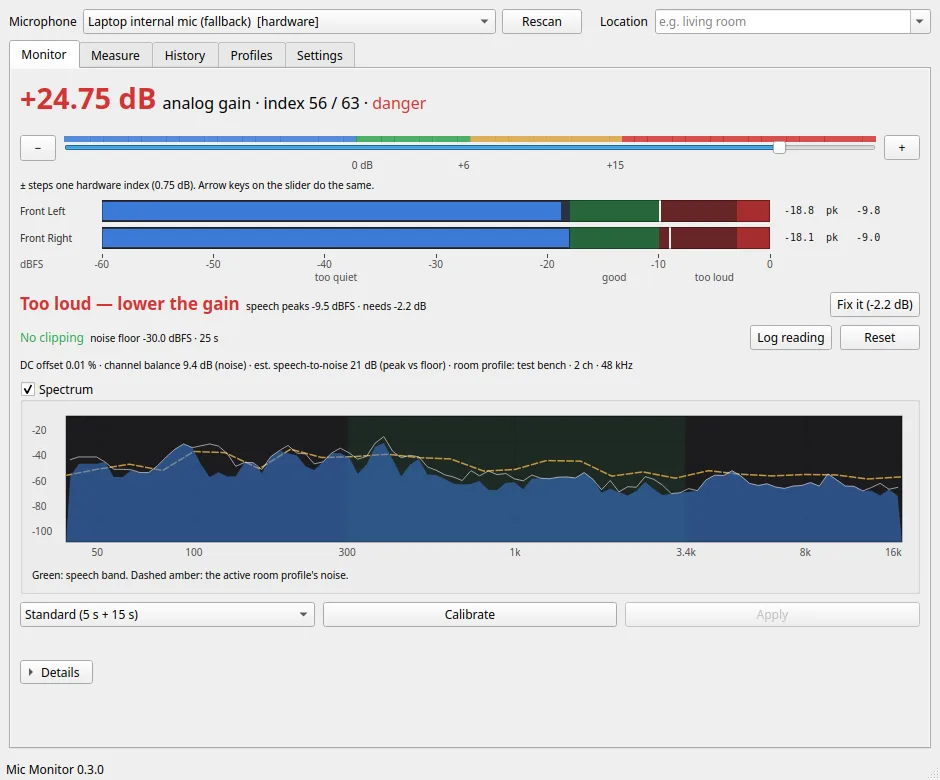
The cause turned out to be the slider itself — the one control I'd never thought to question. On Linux, the microphone volume you see in the desktop (the percentage in the Plasma applet, pavucontrol, GNOME Settings or pactl) is not the analog gain of the microphone's preamp. On my laptop the two readings, taken at the same instant, were 60 dB apart. So I wrote Mic Monitor, a small KDE Plasma tray app that shows the real analog gain in dB, the actual signal level, and whether the mic is clipping, so that I never have to guess again.
Why the Linux microphone slider lies
Here's what I measured on my laptop, a Realtek ALC257 codec on Ubuntu with PipeWire and wireplumber. Both numbers come from the same moment:
pactl(and so pavucontrol and the Plasma applet): 12%, which it reports as −55.25 dBthe ALSA
Capturecontrol, which is the real preamp: index 29 of 63, or +4.50 dB
Then I stepped the PipeWire volume up and read the hardware control after each step. The whole usable analog range (−17.25 dB to +30 dB) lives between 5% and 35% on the slider. At 10% you're at 0 dB. At 20% you're at +18 dB. Anything above about 35% is pinned at maximum boost, so the top two thirds of the slider do nothing at all except look reassuring.
That last point is the trap. A slider a third of the way along looks conservative. It's maximum gain.
Why does it matter so much? Because clipping at the preamp happens in the analog domain, before the audio ever becomes numbers. With the gain at +30 dB, four seconds of plain room noise (no speech at all) already peaked at −11 dBFS. There's nowhere for a voice to go from there except into the ceiling, and once the converter has clipped, no filter, automatic gain control or noise suppressor downstream can put the waveform back. The mic still "works". It just feeds the recogniser garbage.
To make it worse, the gain doesn't stay where you put it. wireplumber restores its own saved volume when a device becomes the default source, and I watched it reset my preamp to maximum twice in one session. I'd fix it, and it would quietly undo the fix.
The detour: processing instead of fixing
My first attempt went the other way. A sibling project, dictamic, put a WebRTC chain (automatic gain control, noise suppression, echo cancellation) in front of the mic as a virtual source. The idea was to clean up whatever the hardware produced.
GitHub Repository danielrosehill/dictamic Fix laptop internal-mic voice recognition accuracy on Linux: PipeWire WebRTC AGC pipeline + monitor GUI (.deb) PythonUpdated Jul 2026 View on GitHubMeasurement killed it.
Raw, unprocessed audio at a sensible analog gain had a noise floor of −56.4 dBFS. The full WebRTC chain, fighting bad gain, managed −46.9 dBFS: 9 dB worse than simply setting the gain correctly and doing nothing else. The processing was solving a problem that correct gain solves better (which is a slightly humbling thing to learn about your own software).
So Mic Monitor inserts no processing at all — none. It observes, it sets gain, and it records only when you ask it to. It started in July 2026 as micscope, a GTK proof of concept with a single window. Version 0.3.0 is a rewrite in Qt 6 for KDE Plasma, which is what I actually use, and it's the first version I'd hand to anyone else.
What Mic Monitor does
The Monitor tab is the heart of it. The gain is shown in dB, read from the ALSA hardware control, with colour zones derived from the device's own curve rather than from a hard-coded percentage (hard-coding "35% is the sweet spot" from one laptop would be exactly the bug the app exists to fix). The − and + buttons move one hardware step at a time, which is 0.75 dB on an HDA codec like mine. Beside it, deliberately, sits what PipeWire claims, so you can see the discrepancy for yourself.
Below that are per-channel meters in dBFS, with peak hold and the band that speech recognition wants: speech peaks between −18 and −10 dBFS. The channels are analysed separately rather than averaged, because averaging two channels hides clipping that affects only one (and on my laptop the two internal mics don't behave the same). Clipping is counted in actual samples and runs, not guessed from a red light. A live verdict tells you what to do ("too loud, needs −6 dB"), and a Fix it button does it.
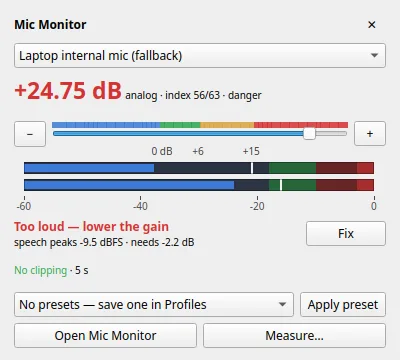
The tray is where it lives day to day. Left-click opens a small pop-up with the device, a gain slider, a live meter and your presets. The tray icon changes colour with the gain zone, and it turns amber and sends a notification when something else moves your gain, which in practice means wireplumber.
The Measure tab is for when you want to know more than "is it clipping". Record some room tone and it reports the noise floor, mains hum at 50 or 60 Hz, rumble, hiss and how steady the noise is. Record a voice sample (there's a passage to read) and it reports speech peak and level, signal-to-noise ratio against your room profile, pitch, bandwidth (it catches Bluetooth headsets quietly dropping to narrowband), plosive pops and channel imbalance. All of that rolls up into an ASR readiness score from 0 to 100, with each deduction named, plus a suggested gain.
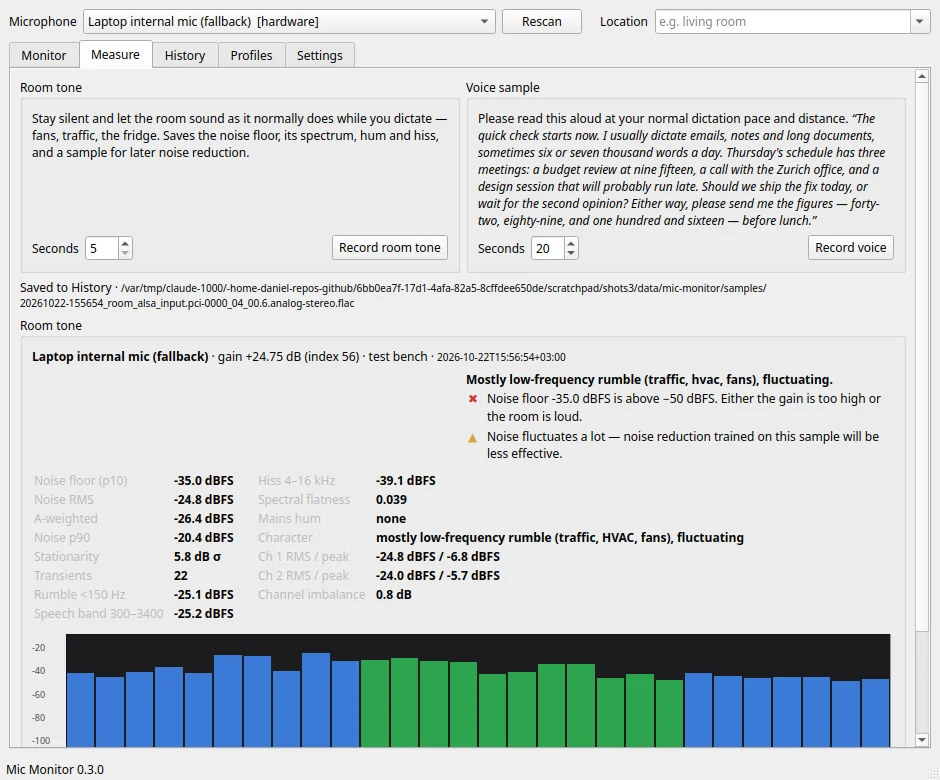
The first real room I measured was my own — the laptop, at my desk — with the gain at +24.75 dB. The noise floor came out at −32.4 dBFS against a target of −50 or lower, with an 11.8 dB imbalance between the two channels. In other words, the gain was far too high, which is exactly what the measurements of the slider had predicted.
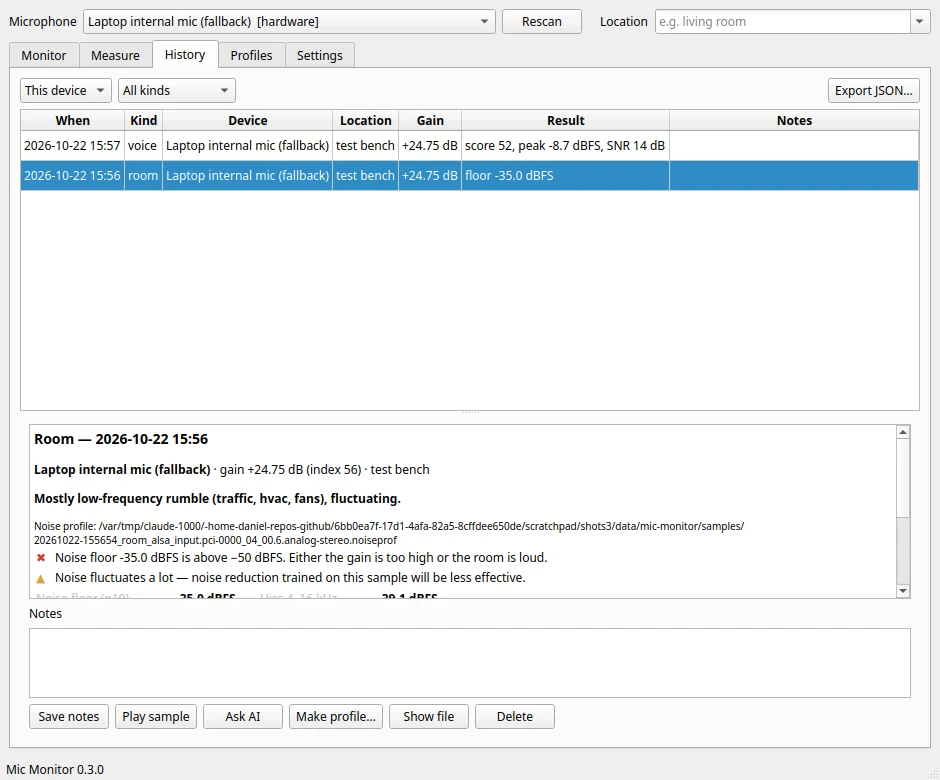
Everything goes into a History tab with the device, gain, location and notes, so you can compare the living room against the office, or this week against last month. Profiles hold gain presets per microphone ("office", "living room"), room noise profiles that become the reference for the SNR figure and the spectrum overlay, and voice profiles. If you give it an OpenRouter key, it can also send a measurement (optionally with the audio) to a model for a plain-language review. That part is entirely optional; everything else works offline.
Microphones with no analog control at all, like Bluetooth headsets and processed virtual sources, fall back to PipeWire's software volume in 1% steps, clearly labelled as digital. There's also a command line (mic-monitor --measure room, --list --json, --restore) that prints JSON, so scripts and AI agents can use it too.
Installing it on Ubuntu
Mic Monitor is packaged as a .deb and published in my signed APT repository. To add the repository and install it in one go:
curl -fsSL https://apps.danielrosehill.com/apt/setup.sh | sudo sh -s -- mic-monitorIf you've already added the repository for another of my apps:
sudo apt update && sudo apt install mic-monitorUpdates then arrive with everything else:
sudo apt update && sudo apt upgradeIf you'd rather not add a repository, download the .deb from the latest release on GitHub and install it from the folder you saved it to:
sudo apt install ./mic-monitor_*_all.debThen run mic-monitor, or mic-monitor --tray to start straight into the tray. I've tested it on Ubuntu 26.04 with KDE Plasma 6. It needs only packages from the Ubuntu archive (PyQt6 and numpy), so 24.04 and later should be fine, and it runs on any desktop with a StatusNotifierItem tray, though Plasma is what it's built for. The full list of my apps, and how the APT repository is set up, is on my apps page. The source is on GitHub.
If you had micscope installed, the mic-monitor package replaces it and moves your settings and history across on first run.
What I'd do differently, and what's next
The honest caveat: the ASR readiness thresholds are design targets, not values tuned on data. They're checked against synthetic signals and one real room (mine), and not yet against a pile of real voice recordings. That's the next job: checking the score against real dictation, and seeing whether a low score actually predicts the transcripts that go wrong.
The bigger lesson is the one that cost me months. If your dictation on Linux has got worse and you can't see why, don't trust the slider. Open alsamixer, press F4 for the capture view, and look at the number in dB (or install Mic Monitor and let it look for you). Mine said +30 dB while the desktop told me everything was fine.
For more on the speech side of this, I've written about Boxty, my English dictation model and about how much audio bitrate a multimodal model really needs for transcription. And if you're a Plasma user, there's also my Hebrew date widget for KDE Plasma.
